Automating My Daily Workspace with JSON, PowerShell, and Windows Startup
Every workday used to begin with the same repetitive routine: opening Outlook, launching Visual Studio, starting browsers with specific tabs, and opening note-taking applications. None of these tasks are difficult, but performing them repeatedly adds friction before actual work even begins.
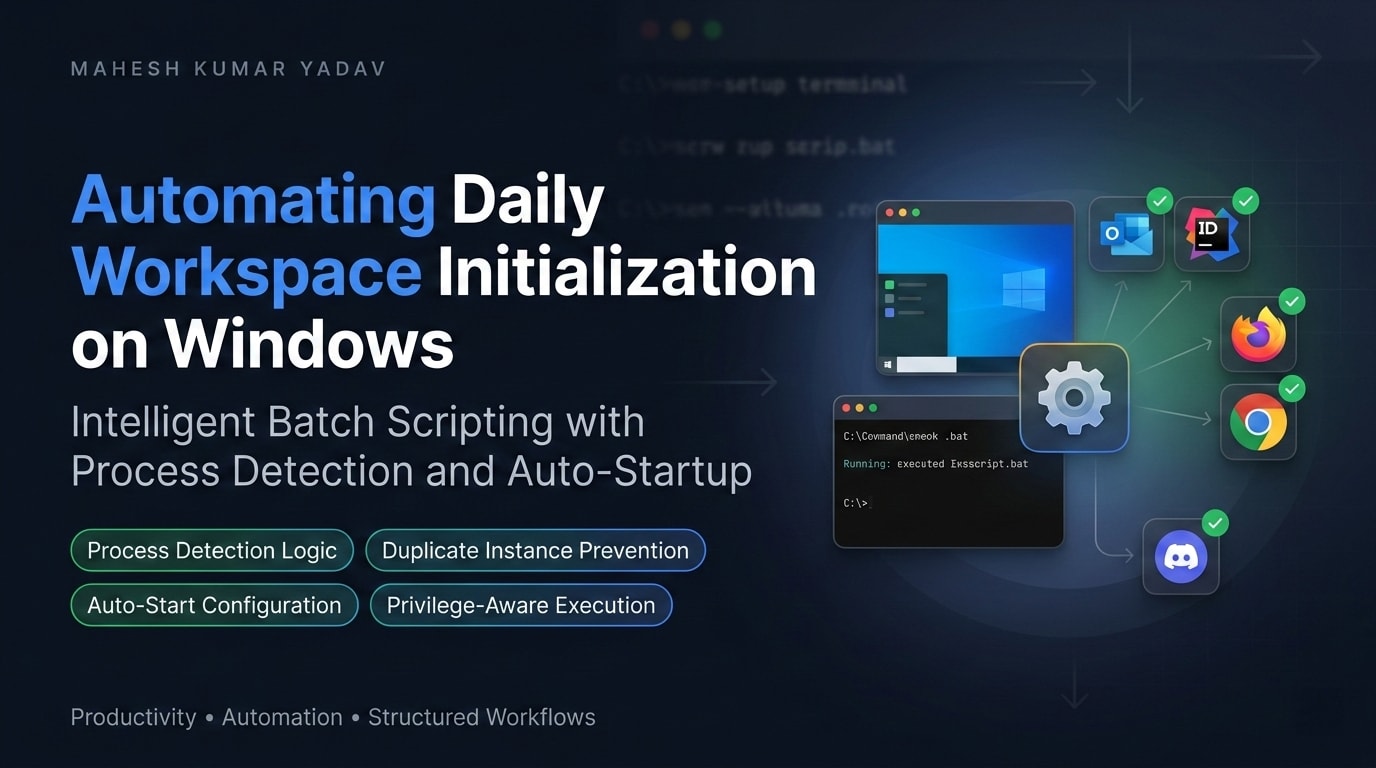
To eliminate that overhead, I built a lightweight workspace launcher that starts everything I need from a single configuration file. Instead of hardcoding application paths inside a batch script, the solution uses a JSON file for configuration, a PowerShell script for execution, and a small VBScript launcher for silent startup.
Why Move Beyond Traditional Batch Files?
Batch files are great for simple automation, but they become harder to maintain as the number of applications grows.
Typical challenges include:
- Hardcoded application paths
- Duplicate code for each application
- Difficulty enabling or disabling tools
- Managing administrator privileges
- Maintaining different workspace configurations
I wanted something that could be modified without touching the launcher logic itself.
The result was a configuration-driven approach where the launcher reads a list of applications from a JSON file.
Project Structure
The solution consists of three small files:
RegularWorkSpaceAutomation/
│
├── apps.json
├── launcher.ps1
└── AutoRun.vbs
Each component has a specific responsibility:
| File | Purpose |
|---|---|
| apps.json | Stores application definitions |
| launcher.ps1 | Reads configuration and launches applications |
| AutoRun.vbs | Starts PowerShell silently without showing a console window |
Defining Applications in JSON
All applications are maintained in a single configuration file.
[
  {
    "name": "Chrome YouTube",
    "filePath": "chrome",
    "arguments": "--incognito https://www.youtube.com/",
    "admin": false
  },
  {
    "name": "Outlook",
    "filePath": "outlook",
    "arguments": "",
    "admin": false
  }
]
Adding a new application is as simple as adding another object.
Removing an application requires deleting only a single entry.
No launcher code changes are necessary.
Launching Applications with PowerShell
The launcher reads the JSON file and starts each application dynamically.
$apps = Get-Content "$PSScriptRoot\apps.json" -Raw | ConvertFrom-Json
For every application entry, the script determines:
- Application path
- Command-line arguments
- Whether elevation is required
Applications that require administrator privileges are launched using:
Start-Process -FilePath $app.filePath -Verb RunAs
Standard applications launch normally.
This keeps the configuration simple while allowing different launch behaviors.
Silent Startup Using VBScript
To avoid displaying a PowerShell console window at login, a small VBScript wrapper starts the launcher silently.
Set WshShell = CreateObject("WScript.Shell")

scriptFolder = CreateObject("Scripting.FileSystemObject").GetParentFolderName(WScript.ScriptFullName)

WshShell.Run "powershell.exe -ExecutionPolicy Bypass -File """ & scriptFolder & "\launcher.ps1""", 0, False

Set WshShell = Nothing
The window style value 0 ensures the startup process remains invisible.
Current Workspace Configuration
My daily workspace currently launches:
- Microsoft Sticky Notes
- Outlook
- Chrome in Incognito mode
- Chrome with a dedicated TFS dashboard
- Visual Studio with administrator privileges
The exact set of applications changes occasionally, but updating the workspace only requires editing the JSON file.
Automatic Startup at Login
To launch the workspace automatically when Windows starts:
- Create a shortcut to
AutoRun.vbs - Place the shortcut in the Startup folder
shell:startup
Windows automatically executes the launcher after login.
Benefits of a Configuration-Driven Workspace
After using this setup for several months, a few advantages became obvious:
Easier Maintenance
Applications can be added or removed without modifying scripts.
Consistent Startup Experience
The same tools are available every morning without relying on memory.
Cleaner Separation of Responsibilities
Configuration lives in JSON while execution logic remains in PowerShell.
Reduced Friction
A complete workspace is ready with a single action—or automatically after login.
Future Improvements
Potential enhancements include:
- Startup delays per application
- Enable/disable flags
- Application groups (Development, Meetings, Writing)
- Process detection to avoid duplicate launches
- Logging and error reporting
- Workspace profiles for different projects
Because the launcher is configuration-driven, these features can be added without redesigning the overall structure.
Final Thoughts
What started as a simple batch file evolved into a small but flexible automation tool. The combination of JSON configuration, PowerShell execution, and silent startup provides a clean way to prepare a working environment with minimal effort.
The biggest benefit is not the few minutes saved each morning. It’s removing a repetitive task entirely and starting work in a consistent environment every day.
Share on
X Facebook LinkedIn BlueskyComments are configured with provider: disqus, but are disabled in non-production environments.